Requirements:
You have already completed the certification process
You have a valid system certificate file (pfx file) (see Activate PROXESS system certificate)
Step by step:
Connect the PROXESS smartcard reader to the computer via the USB interface.
Insert a new “blank” smartcard into the reader.
Start the program Gemalto Classic Client Toolbox via Start/Programs.
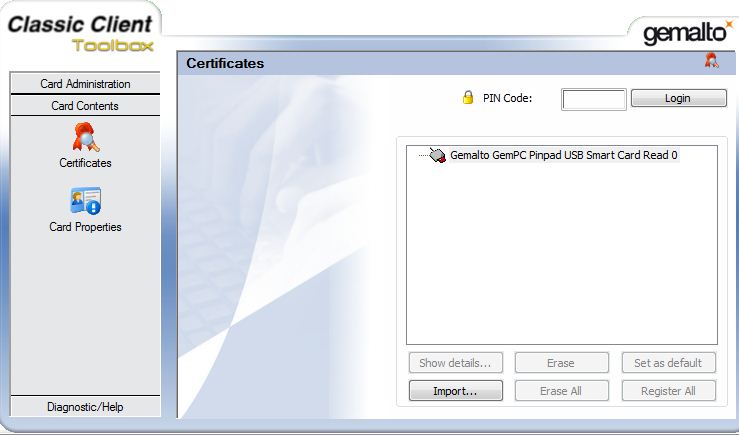
In the “Card contents” menu, choose the command Certificates.
Fig.: Dialog box for the Gemalto Classic Client Toolbox to import the key file (.pfx)
In the option “Import/Import from File”, choose the Open command.
In the output folder that you have already selected, choose the file with the .pfx extension, which you created during the certification process in the menu item “Activate PROXESS system certificate”.
Enter the password of your PROXESS system certificate request in the following dialog. (You can find this password on the printout of the PROXESS system certificate request.)
Confirm your entry with the Verify command.
After a successful review, your certificate to be imported is displayed in the selection list.
Select the certificate and enter the PIN of the inserted smartcard. (At delivery, this is: 1234).
You should subsequently change the standard PIN into an individual PIN in the program Gemalto Classic Client Toolbox in the “PIN management” menu (see PIN management of PROXESS supervisor smartcards).
Confirm your entries with the Import command. You will get a confirmation that the certificate was imported successfully.
Now the imported key is displayed in the “Certificates” menu and assigned to your PROXESS system certificate.
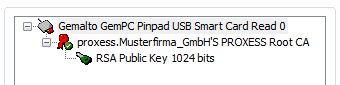
Fig.: Display after successful transfer in the “Certificates” menu
Now you can create a PROXESS supervisor smartcard.
Also see:
PIN management of PROXESS supervisor smartcards
System setup for operation in certificate mode