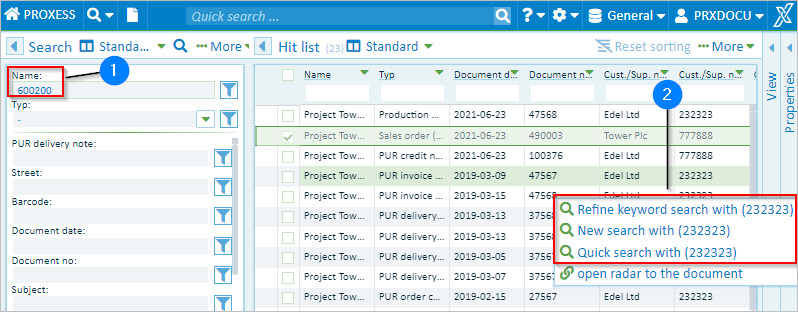
A search always results in a hitlist. You can use this hitlist to refine the original search or trigger a new search with values from the hitlist.
Fig.: Context menu in the hitlist with other search options.
| 1 |
In the first step, run a keyword search or quick search.
Example: You use the keyword search to search for a project number (600200). Your hitlist now contains all the project documents.
|
| 2 |
Pass your mouse over a value in the hitlist and open the context menu. You can now refine the search or trigger a new search using the field value.
Example: Search for other documents belonging to a supplier (Aron Einrichtung). |
You can refine or restart the search in the following ways:
|
Refine keyword search |
The current search is narrowed down using the field value.
Example: A keyword search for the value “600200” in the document name was executed.
The supplier name “Aron Einrichtung” is added to this search command and all the documents matching the two criteria are displayed. In this way, the hitlist normally gets smaller. |
|
Filter quick search |
The current search is narrowed down using the field value.
Example: A quick search for the value “600200” was executed.
In addition, the existing hitlist is further filtered by searching for the supplier name “Aron Einrichtung”. In this way, the hitlist normally gets smaller. |
|
New search with field value |
A new keyword search is run with the field value. The new hitlist may be bigger.
Example: A new keyword search is run with the value “Aron Einrichtung” in the field “Supplier/Customer Name”. |
|
Quick search with field value |
A new quick search (full-text search) is run with the field value. The new hitlist may be bigger.
Example: A new quick search (full-text search) is run for the term “Aron Einrichtung". If the value “Aron Einrichtung” is found in searchable file content or in other fields, those documents will be found too. |