You can highlight an area in a file and insert a link there.
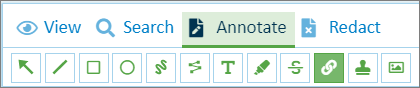
To insert a link in a file, select the “Annotations” tab in the menu above the file view.
Click the link icon.
Fig.: File view menu with “Annotations” tab
In the context menu, select the desired color to highlight the link.
Now drag the mouse over the area to be highlighted.
You can highlight a text or select an existing highlight with a click.
Enter the target address for the link in the context menu.

Fig.: Highlight in file with associated link
You can delete the link again with the recycling bin icon.
|
|
Save your changes before you leave the file window.
|

