You need your PROXESS system certificate (pfx file) for this step. First, the steps “Request PROXESS system certificate” and “Activate PROXESS system certificate” must already be completed. By entering the command “Install PROXESS system certificate”, you are designating the pfx file as the valid certificate file for your PROXESS system.
Step by step:
Start the PROXESS Administrator Console and mark the branch “PROXESS Administrator” in the console root. In the “Action” menu, click “Certificates” and select the command Install PROXESS system certificate.
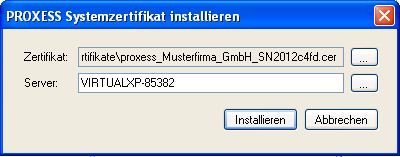
The following dialog box appears:
Fig.: Dialog field to install the PROXESS system certificate
Select your PROXESS system certificate as the certificate. You transferred this to PROXESS GmbH in the step “Request PROXESS system certificate” and received it back from the company in a digitally countersigned e-mail.
Please enter the IP addresses or the name of your PROXESS server in the “Server” field. In a distributed system, this is the computer on which the PROXESS Document Manager is installed.
Confirm your input by clicking the Install button.
You will get a confirmation that the action was completed successfully.
You can prepare and create a supervisor smartcard in the next step.
Also see:
Prepare PROXESS supervisor smartcard
Create PROXESS supervisor smartcard